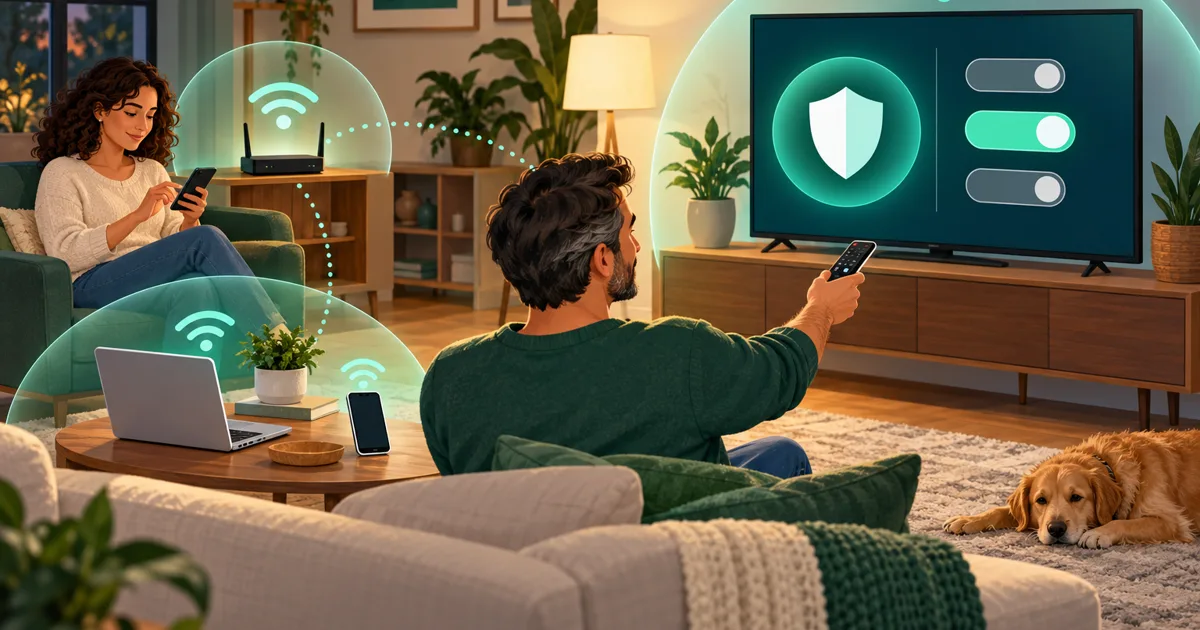
Yes, your smart TV may track what appears on its screen. To reduce that tracking, turn off Automatic Content Recognition, usually called ACR, Viewing Information, Live Plus or Smart TV Experience. Then disable the separate advertising and usage-data controls. Putting the television on an isolated guest network is a sensible second step, although it does not replace the privacy settings.
What ACR sees, and what turning it off changes
ACR creates content-identification fingerprints from supported video so the TV service can identify programs and viewing activity. Depending on the brand, that may include antenna television and devices connected through HDMI, such as a cable box or game console. Samsung says its ACR data may include viewing history, time watched, a TV identifier and the IP address. Samsung explains its ACR system here.
Turning off ACR stops that specific viewing-recognition feature from collecting new data. It does not erase viewing history held by Netflix, YouTube, Hulu or another app you use. Each service has its own account history and privacy controls. It also will not remove every advertisement from a TV interface. You are generally changing personalization, not buying the television an ad-free retirement.
Menu labels can vary by model year, software version and region. If the exact path below is missing, look in Settings for Privacy Choices, Terms & Privacy, User Agreements or Advertising.
Samsung: turn off Viewing Information Services
On recent Samsung TVs, ACR is tied to consent for Viewing Information Services. Samsung says the feature runs only after that service has been enabled.
- Press Home and open Settings.
- Select All Settings > General & Privacy > Terms & Privacy.
- Open Viewing Information Services.
- Uncheck I agree, then select Confirm.
- Return to Terms & Privacy and open Interest-Based Advertisements Service, if it appears.
- Withdraw that consent as well if you do not want ads personalized with Samsung viewing or usage information.
Some sets place the same controls inside a Privacy Choices tile on the Home screen. Older models may put Terms & Privacy directly under Settings or Support. Generic ads may remain after personalization is disabled, as Samsung notes on its Smart TV page.
LG: disable viewing agreements and Live Plus
LG calls its ACR permission the Viewing Information Agreement. The company says ACR can process content fingerprints along with the source, device and network information. It also says interest-based and cross-device advertising requires separate consent. LG’s current ACR explanation describes those controls.
For current webOS televisions:
- Press the Settings gear and choose All Settings.
- Open Support > Privacy & Terms > User Agreements.
- Uncheck Viewing Information Agreement, sometimes labeled ACR and Viewing Information Agreement.
- Uncheck Interest-Based & Cross-Device Advertising Agreement.
- Select Agree or Confirm to save the revised choices. Leaving the screen without confirming may preserve the old selections.
LG’s current support instructions say viewing, voice and personalized-ad agreements are optional. The Terms of Use and Privacy Policy may still be required for smart apps.
If your TV also shows Live Plus, turn it off under All Settings > General > System > Additional Settings > Live Plus. On older models, the path may omit System. LG’s Live Plus support page documents both paths.
Roku TV: disable Smart TV Experience ACR
This setting applies to televisions running Roku TV. A Roku streaming player connected to a different television cannot inspect that television’s other HDMI inputs.
- Press Home on the Roku remote.
- Open Settings > Privacy > Smart TV Experience.
- Clear Automatic Content Recognition (ACR). Some older software calls it Use info from TV inputs.
- Clear More Ways to Watch as well. That recommendation feature depends on ACR.
Roku says Smart TV Experience can recognize movies, shows or games viewed through streaming, an antenna or connected devices. Its official Smart TV Experience instructions also warn that disabling ACR does not delete information collected while it was enabled.
Fire TV: switch off usage and viewing data
Fire TV separates several privacy choices, so one switch does not cover the whole platform. Amazon’s Fire TV privacy FAQ provides the current paths and explains what each control affects.
- Open Settings > Preferences > Privacy Settings.
- Turn off Device Usage Data. This stops Amazon from processing operating-system usage data for customized marketing and product improvement.
- Turn off Collect App Usage Data. This covers information about opening, closing and time spent in third party apps.
- Turn off Interest-based Ads. This tells apps using the Fire TV advertising ID not to use it for targeted advertising profiles.
- On a television with Fire TV built in, turn off Over-the-air Viewing Data if it appears. That setting covers antenna programming received directly by the TV.
These switches are device-specific. Repeat the process on every Fire TV television or streaming device in the house. Prime Video and other services still maintain their own service-level activity under their respective accounts.
Google TV: reduce recommendations and ad tracking
Google TV’s published controls focus on recommendations, account activity and the advertising ID. A Sony, TCL, Hisense or other television maker may add its own ACR agreement, so check the manufacturer’s privacy menu after changing the Google settings.
First, delete the advertising ID:
- From the Google TV Home screen, open Settings.
- Select Privacy > Ads > Delete advertising ID.
- Press the directional pad twice to focus the confirmation, then press Select.
Google says this prevents installed apps from basing ads on that ID, although ads can still appear and apps may use information you gave them in other ways. The exact steps are in Google’s advertising settings guide.
To hide personalized recommendations, open All Settings > Accounts & Profiles, choose your profile, then turn on Apps only mode. This removes personalized recommendations from the Home screen. Search, Google Assistant, likes and the watchlist become unavailable in this mode. Sponsored content can still appear.
Google also says Web & App Activity can continue improving recommendations while Apps only mode is active. Turn off Web & App Activity in your Google Account if you want to stop that account-level recommendation activity. Google’s TV overview explains the tradeoffs.
Put the TV on an isolated guest network
A separate network limits what the television can reach inside your home. It does not prevent the TV from contacting its vendor or streaming services over the internet. That is why the privacy switches come first.
For a basic setup:
- Create a guest or IoT WiFi network on your router.
- Turn off any option named Allow guests to access local network, Access intranet or similar.
- Connect the television to that network.
- Confirm that streaming and software updates still work.
- Test phone remotes, AirPlay, Chromecast and screen casting.
Casting may fail because isolation blocks the local discovery traffic used by phones and televisions. Some routers let you permit one phone to reach the TV while blocking everything else. Simpler guest networks offer an all-or-nothing choice. Our guest WiFi setup guide covers the brand-specific router steps, while our smart-device guest network guide explains the casting tradeoffs.
NIST recommends separating noncritical connected devices from computers and other valuable systems. If your existing router cannot provide real isolation, look for guest-network isolation or per-device network rules when replacing it. Our home network security guide covers the broader setup, and the hardware firewall guide explains options for households that need finer rules.
Recheck these controls after a factory reset, major software update or another setup screen asking you to accept agreements. Read each optional checkbox instead of selecting Agree to all. It takes a few extra remote clicks, which remains preferable to letting the television make privacy decisions on behalf of everyone watching it.
Sources
- Samsung Smart TV Automatic Content Recognition (ACR) Feature — Samsung
- Smart TV, Samsung Smart Hub and Apps — Samsung
- Understanding Privacy on LG Smart TVs — LG Electronics
- How to Accept the Updated User Agreements on Your LG TV — LG USA Support
- Flickering Video from Xbox HDR Gaming — LG Canada Support
- Using More Ways to Watch on Your Roku TV — Roku Support
- Privacy Settings FAQs for Fire TV Products — Amazon
- If You Connect It, Protect It! — National Institute of Standards and Technology
Researched and drafted with AI assistance from the sources above, then checked against them. Spot an error? Tell us and we'll fix it.