Most home-network advice is either a listicle of ancient tips (“change your SSID!”) or an enterprise checklist wearing a family costume. This guide is neither. It’s the complete sequence we recommend — ordered by impact, written for people with normal lives, with every step linking to a deeper walkthrough where one exists.
Do the steps in order. The first seven are free and cover most households’ real risk. The hardware conversation comes last, where it belongs.
Step 1 — Update the router, then make it automatic
Home networks rarely fall to movie hacking; they fall to known firmware bugs on routers nobody updates. Log into your router’s admin page tonight (the address is on the sticker underneath), find the firmware section, update, and switch on automatic updates if they exist.
While you’re under there: if the model’s last update is over a year old, the honest fix is replacement — our current router picks all have active patch tracks. No configuration below can compensate for abandoned firmware.
Step 2 — Fix the two passwords that matter
Your router has two passwords people conflate: the WiFi password and the admin password. The admin one is the crown jewels — it lets anyone on your network reconfigure everything — and on older routers it’s still admin. Change it to something long from your password manager, because you’ll need it twice a year and forget anything else.
WiFi password: long passphrase, and change it if it’s been shared beyond people you’d hand a house key. (Everyone else belongs on the guest network — Step 5.)
Step 3 — WPA3 if you have it, proper WPA2 if you don’t
In WiFi settings, set security to WPA3 or WPA2/WPA3 transitional. If your router only offers WPA2, ensure it’s WPA2-AES (never WEP or WPA-TKIP, which are broken). Our WPA2 vs WPA3 explainer covers whether the difference justifies new hardware — short answer: alone, no; as a tiebreaker, yes.
Step 4 — Disable the convenience features attackers love
Three settings ship enabled on many routers and each has earned its place on every security checklist:
- WPS (the push-button pairing) — brute-forceable by design; off.
- UPnP — lets any device open holes in your firewall without asking; off unless something you actively need breaks (mostly some game consoles — re-enable knowingly, not by default).
- Remote management — your admin page, on the public internet; off, always.
Full walkthrough: Disable These 5 Router Settings Today.
Step 5 — Guest WiFi: the ten-minute segmentation
The highest-value free upgrade on this page. A guest network isn’t for guests anymore — it’s a separate lane for every device you can’t vouch for: smart plugs, cameras, TVs, the doorbell, and visitors’ phones. If one gets compromised, it’s stuck in the guest lane instead of standing next to your tax returns.
Per-brand setup steps: Guest WiFi in 10 Minutes. Which devices belong where: Should Smart Devices Be on Guest WiFi?.
Step 6 — Audit what’s actually on your network
Open your router’s device list (or the app) and count. Most people find devices they forgot exist — and forgotten devices don’t get updates. Anything you can’t identify: change the WiFi password and re-add only what you recognize. Anything you no longer use: factory-reset and remove it.
Signs something is wrong and a triage flowchart: Is My Router Hacked? 9 Warning Signs.
Step 7 — DNS filtering: free, invisible protection
Switching your router’s DNS to a filtering resolver (Cloudflare’s 1.1.1.2 for malware blocking, or 1.1.1.3 to add adult content filtering; Quad9’s 9.9.9.9 is a fine alternative) blocks known-malicious domains for every device in the house, including the ones that can’t run any security software. Two minutes in router settings, no downside, protects the smart TV as thoroughly as the laptop.
CISA’s home network security guidance and the NSA’s best practices PDF both back this layered approach — ours just comes with the specific screens.
Step 8 — Now, and only now: the hardware conversation
If you’ve done steps 1-7, you’re ahead of the large majority of households. Hardware enters the picture when your situation outgrows router settings:
- Kids and screens: routers with genuine per-child controls — Gryphon AX and Synology WRX560 do it subscription-free; full comparison in Best Router for Parental Controls.
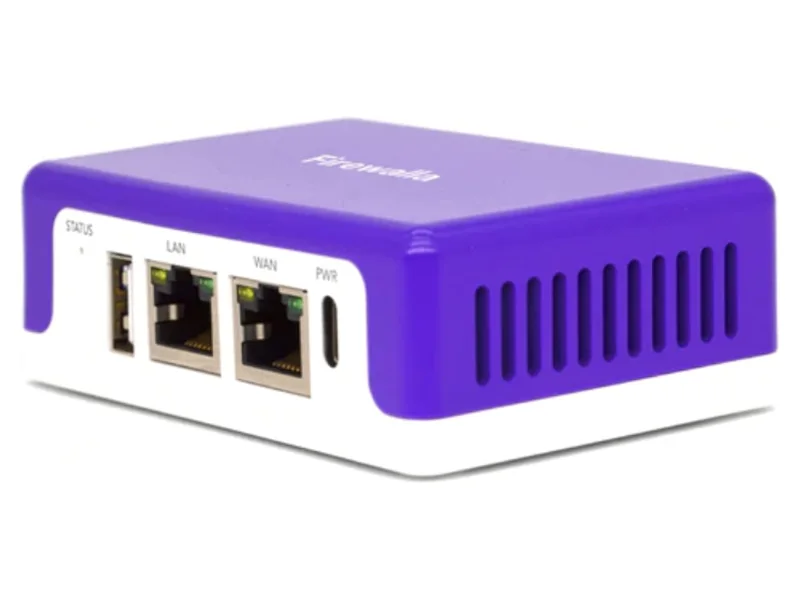
- A house full of IoT: a monitoring firewall like Firewalla shows you which gadget misbehaves and blocks it automatically — we break down whether it’s worth it by household type.
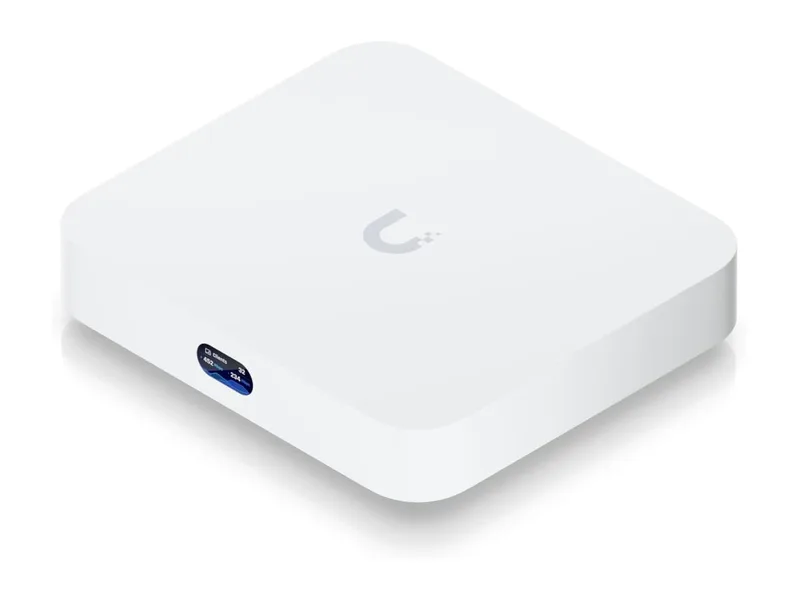
- Tinkerers: OPNsense on a Protectli box or a UniFi gateway with real VLANs.
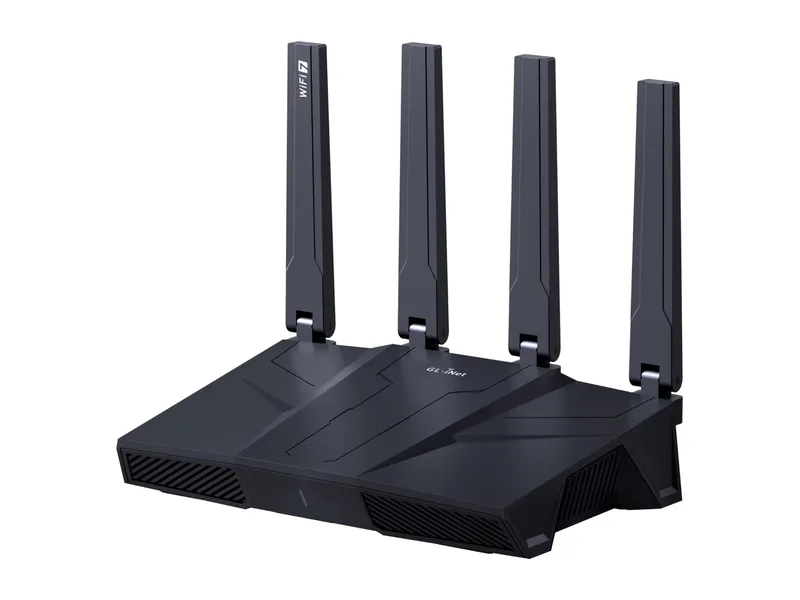
- Whole-home VPN: a Flint 3 routes every device through an encrypted tunnel — one setup, zero per-device apps.
- Aging mesh with subscription-gated security: consider hardware where protection is free for life — the ASUS RT-BE86U is our standing example.
The full field, compared: Best Hardware Firewall for Home.
The checklist
Print this, put it on the fridge, cross things off:
- ☐ Router firmware updated + auto-update on
- ☐ Router still supported by manufacturer (checked)
- ☐ Admin password changed from default, stored in password manager
- ☐ WiFi on WPA3 (or WPA2-AES minimum), long passphrase
- ☐ WPS off · UPnP off · remote management off
- ☐ Guest network on; smart devices + visitors moved to it
- ☐ Device list audited; strangers evicted, zombies removed
- ☐ Filtering DNS set at router level
- ☐ Hardware step chosen (or consciously skipped) for your household type
- ☐ Calendar reminder: repeat steps 1, 6, 7 twice a year
Ten boxes. A quiet Sunday afternoon. That’s the whole gap between an average network and a hardened one — no hoodie required.