Two days. That’s all this takes. The honest truth is that the work fits comfortably into one Saturday and one Sunday — including coffee breaks. The families who get burned aren’t the ones who skipped some exotic security tool. They’re the ones who reused one password everywhere, never touched their router settings, and never talked to their kids about scams.
So here’s the plan for the day a friend or relative asks you to “come fix the internet stuff.” Five moves, in order of impact. The first one alone eliminates the majority of the risk most households face.
Before you start: what you’re actually defending against
Skip the movie-plot threats. Nobody is targeting your family with custom malware. The real dangers are boring and industrial-scale:
- Password reuse. One breached shopping site gives criminals the same password you used for email and banking.
- Phishing and phone scams. A text pretending to be your bank, or a call pretending to be your grandchild.
- Old, unpatched devices. Routers and smart gadgets running firmware from years ago.
- Kids clicking things. Not because they’re careless — because the internet is designed to be clicked.
Every step this weekend maps to one of those. Nothing here is theoretical.
Saturday morning: the password manager (Move 1, part one)
This is the single highest-impact thing you will ever do for your family’s security, which is why it gets the fresh-brain morning slot.
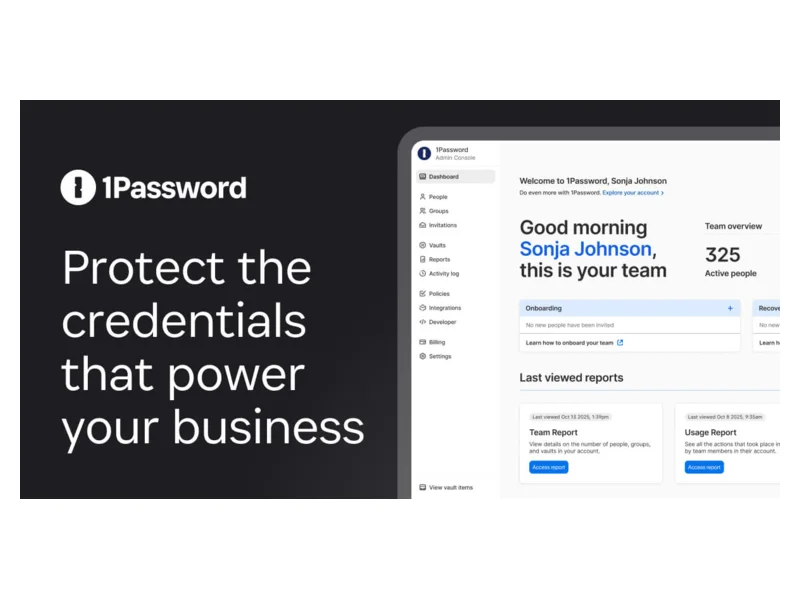
Pick one password manager for the whole family. We recommend 1Password Families for most households — the shared vaults make it easy to give everyone access to the streaming logins while keeping banking credentials private. If the subscription cost bothers you, Bitwarden Premium does the essentials for a fraction of the price and has a genuinely usable free tier.
Your Saturday morning checklist:
- Sign up for the family plan and install the app on your own phone and computer first.
- Change your email password before anything else. Your email account is the master key to everything — every “forgot password” link lands there.
- Change passwords for banking, then any site that stores a credit card.
- Let the password manager generate the new passwords. Don’t invent them yourself.
Don’t try to fix all 200 accounts today. Email, banking, and shopping covers the accounts that can actually hurt you. The rest can wait — the password manager will nag you about weak passwords over the coming weeks.
Saturday afternoon: two-factor authentication (Move 1, part two)
Two-factor authentication (2FA) means a stolen password alone isn’t enough to get into your account. It’s the seatbelt of online life — and one of the four core habits CISA’s Secure Our World program urges every household to adopt.
Turn it on for, in this order: email, banking, and your password manager itself. Use an authenticator app (most password managers, including 1Password and Bitwarden, can generate the codes for you) rather than text messages where you have the choice — SMS codes can be intercepted, though SMS 2FA is still far better than nothing.
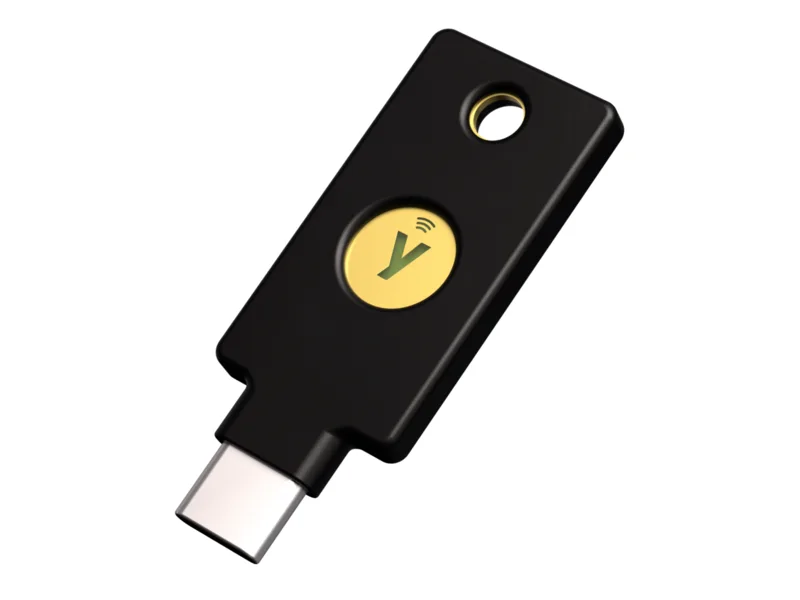
If someone in your family handles serious money or runs a business from home, consider a hardware key like the YubiKey 5C NFC. You tap it to log in, and phishing sites simply can’t fake it. For most families it’s optional; for the family finance person, it’s cheap insurance.
Budget: about 90 minutes. Most of that is finding where each site hides the 2FA setting (usually under “Security” in account settings).
Saturday evening: the router (Move 2)
Your router is the front door of your home network, and most people have never checked whether it’s locked. Grab the router, look at the sticker on the bottom, and log in to its admin page (the sticker usually lists the address and default login).
Four things to check, twenty minutes total:
- Change the admin password if it’s still the default printed on the sticker.
- Update the firmware. Most modern routers have a one-tap “check for updates” button. If your router hasn’t received an update in over two years, it’s time to replace it — see our WiFi router reviews for current picks.
- Confirm your WiFi uses WPA2 or WPA3 encryption. Anything labeled WEP or “open” needs fixing today.
- Turn off remote management (sometimes called “remote access” or “web access from WAN”) unless you know you need it.
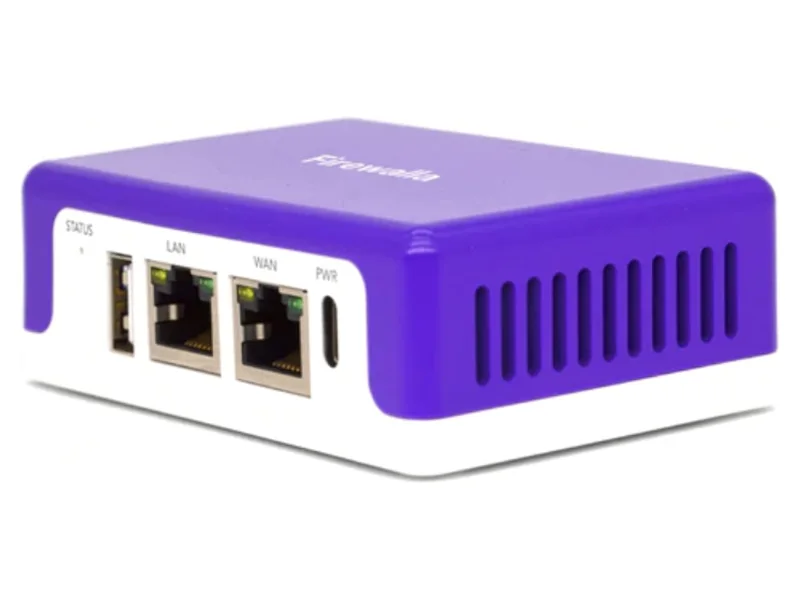
If you finish early and want to go further, a dedicated home firewall like the Firewalla Purple SE plugs into your existing router and shows you what every device is doing — but that’s a next-month project, not a this-weekend requirement.
Sunday morning: antivirus on every device (Move 3)
Modern antivirus isn’t the resource-hogging nag-ware you remember from 2010. The good suites run quietly, block malicious websites before they load, and — importantly for families — cover phones, not just computers.
One subscription should cover the household. Bitdefender Total Security is our pick for most families: excellent lab-test protection scores, light on system resources, and a single plan covers Windows, Mac, Android, and iOS devices. Norton 360 Deluxe is the stronger choice if you want built-in parental controls and dark-web monitoring bundled in one place.
Sunday morning checklist:
- Install on every computer in the house. Yes, Macs too — Mac malware is real, even if it’s rarer.
- Install the mobile app on the kids’ phones. On iPhones it mostly provides web protection and scam-text filtering; on Android it does full malware scanning.
- Run one full scan on each computer while you have breakfast.
- Uninstall any old, expired security software while you’re in there. Two antivirus programs fight each other.
While you’re touching every device anyway, do the two-minute bonus round: install pending operating-system updates and turn on automatic updates everywhere.
Sunday afternoon: guest WiFi for the smart stuff (Move 4)
Here’s a number that surprises people: the average family home now has well over 20 connected devices — TVs, doorbells, thermostats, light bulbs, a robot vacuum, someone’s aging tablet. Each one is a small computer that rarely gets security updates.
The fix is simple: put the smart devices on your router’s guest network. Nearly every router made in the last five years offers one, usually a single toggle in the app or admin page.
Why this works: if your bargain smart plug gets compromised, it’s stuck on the guest network where it can’t see your laptop, your phone, or your files. It’s the digital equivalent of letting the plumber use the hallway bathroom instead of handing them keys to the whole house.
A simple sorting rule: phones, laptops, and tablets go on the main network. Everything that plugs in and never gets touched — TVs, speakers, cameras, bulbs, appliances — goes on guest. If you have a security camera like the Reolink Argus 4 Pro, it lives on the guest network too.
Budget an hour, most of which is re-entering the WiFi password on devices with terrible remote-control keyboards.
Sunday evening: the family conversation (Move 5)
This is the step people skip, and it’s the one that stops the scams no software can catch. Make it dinner-table conversation, not a lecture. Fifteen minutes.
Cover three things:
1. The golden rule of urgency. Any message that demands you act right now — a package fee, a frozen account, a prize, a virus warning — is almost certainly a scam. Legitimate organizations don’t operate that way, and the FTC’s scam-avoidance guidance makes the same point. Teach everyone to close the message and go to the real website or app directly instead of clicking links.
2. A family safe word. Voice-cloning scams are no longer science fiction; criminals can fake a loved one’s voice from a short social media clip and call claiming an emergency. Agree on a word or question only your family knows. If “your daughter” calls in distress asking for money, ask for the safe word. This one habit defeats the entire category of impersonation scams — and it costs nothing.
3. No shame in reporting. The most dangerous moment after someone clicks a bad link is the hour they spend too embarrassed to tell anyone. Make it explicit: anyone in this family who clicks something weird or gets a suspicious call tells the group immediately, no lectures, no eye-rolling. Speed limits the damage; shame multiplies it.
For kids specifically, add one line: “People online are not always who they say they are, and you can always come to us — you will never be in trouble for telling us.”
What you deliberately skipped (and that’s fine)
You did not set up a VPN, and that’s okay — a VPN like NordVPN is useful for travel and public WiFi, but it does nothing about phishing or weak passwords, which is why it wasn’t in the weekend plan. You didn’t buy a hardware firewall, freeze your credit, or audit every old account. Those are all reasonable next steps for another weekend. This weekend was about the 20% of effort that eliminates 80% of the risk, and you did it.
Your weekend at a glance
- Saturday morning: family password manager; new passwords for email, banking, shopping
- Saturday afternoon: 2FA on email, banking, and the password manager
- Saturday evening: router admin password, firmware update, WPA2/WPA3, remote access off
- Sunday morning: antivirus on every device, one full scan, system updates
- Sunday afternoon: smart devices moved to guest WiFi
- Sunday evening: the talk — urgency rule, safe word, no-shame reporting
The bottom line
If you only do one thing from this entire guide, make it Saturday morning: set up 1Password Families and change your email and banking passwords. A family password manager with 2FA on your email account blocks more real-world attacks than every other gadget and subscription combined. Everything else this weekend builds on that foundation — but that’s the foundation.